Shopify
Summarize this blog post with:
What You Need To Know
- Shopify has solid SEO defaults. Canonical tags, XML sitemaps, and SSL are handled automatically. The platform is not the problem. The configuration decisions you made during setup are.
- The 9 Shopify SEO mistakes in this guide are not theoretical. They come from running a Shopify SEO audit on live stores that rank on page 3 for keywords where their product quality and backlink profile should put them on page 1.
- Most of these fixes take under 2 hours each. Mistake 4 (missing Product schema) and Mistake 7 (canonical misconfig on variant pages) require a developer. The rest you can fix today in your Shopify admin.
- A2Z Dev Center provides a specialist Shopify development service covering technical SEO audits, schema implementation, and conversion optimization for active stores. If you want all 9 fixed in one engagement, the last section covers how.
Your Shopify store has been live for eight months. You get 4,000 sessions per month from organic. Your Google Search Console shows 200,000 impressions. Your average position for your main product keywords is 14. You are stuck on page 2 and you do not know why, because you did everything the launch guide said.
Position 14 to position 4 is a traffic multiplier of roughly 5x. That is not a content problem or a domain authority problem at this stage. It is almost always one of the 9 shopify seo mistakes below, operating silently in the background while you keep publishing blog posts and waiting for rankings that will not move until the technical layer is fixed.
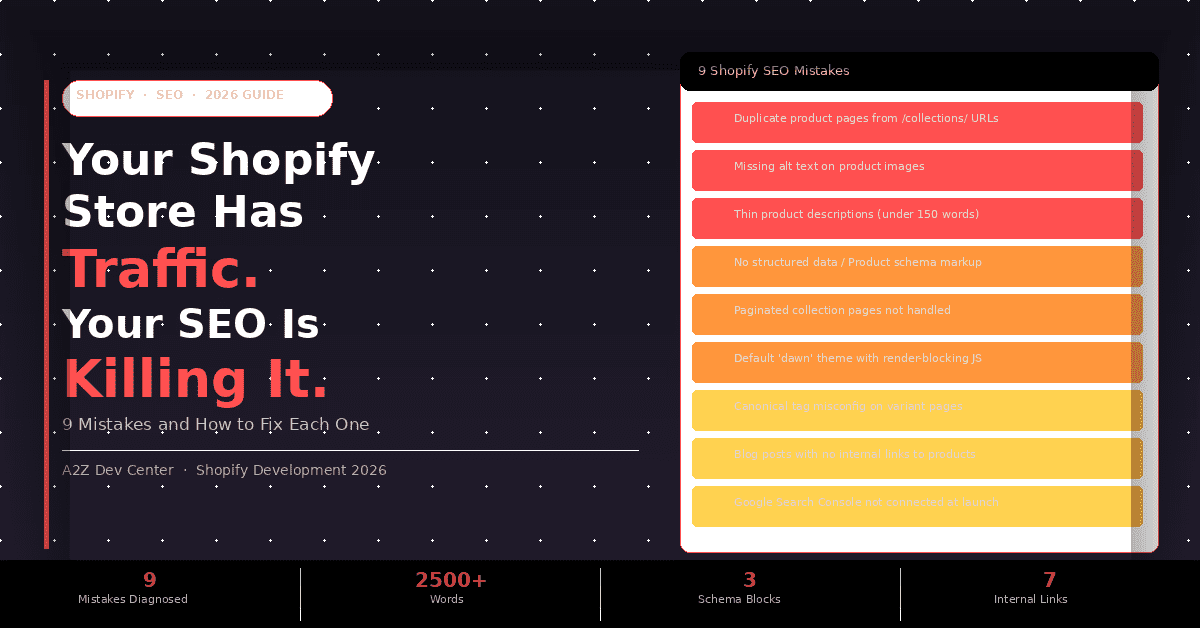
The 9 Shopify SEO Mistakes, by Revenue Impact
| Mistake | Revenue Impact | Fix Difficulty | Time to Fix |
|---|---|---|---|
| 1. Duplicate URLs from /collections/ paths | High | Easy | 30 min |
| 2. Missing alt text on product images | Medium | Easy | 1-2 hrs |
| 3. Thin product descriptions | High | Medium | 2-4 hrs |
| 4. No Product schema markup | High | Needs dev | 2-4 hrs dev |
| 5. Pagination issues on collection pages | Medium | Easy | 20 min |
| 6. Render-blocking theme JavaScript | High | Needs dev | 2-4 hrs dev |
| 7. Canonical misconfig on variant URLs | High | Needs dev | 1-2 hrs dev |
| 8. Blog posts not internally linked to products | Medium | Easy | 1-2 hrs |
| 9. Google Search Console not monitored | Low (but critical) | Easy | 30 min setup |
1
Duplicate Product URLs from /collections/ Paths
High Impact
This is the most misunderstood Shopify SEO issue. Every product in Shopify exists at two URLs:
/products/your-product
and
/collections/your-collection/products/your-product.
If your theme generates links to both, Google sees two separate pages with identical content. That splits your link equity between two URLs instead of concentrating it on one.
Shopify added automatic canonical tags that point the /collections/ path back to /products/ path several years ago. The problem is that not all themes implement this correctly, and many older themes pre-2022 do not. Check your canonical tags by right-clicking any product page, selecting View Page Source, and searching for “canonical”. The canonical URL should always be the /products/ path, never the /collections/ path.
The Fix
Open your theme code editor (Online Store, Themes, Edit Code). In your
product.liquid
or
theme.liquid
file, verify the canonical tag reads
{{ canonical_url }}
or explicitly points to
{{ product.url | prepend: shop.url }}.
If your theme is on Shopify 2.0 (Dawn, Sense, Craft), canonical handling is correct by default. If you are on a legacy theme, add the canonical tag manually or update to a Shopify 2.0 theme.
2
Missing or Duplicate Alt Text on Product Images
High Impact
Shopify automatically uses your product title as the alt text for every product image if you do not set it manually. That means every image of your “Blue Leather Wallet” product has the alt text “Blue Leather Wallet” repeated 4 times across 4 images. This is duplicate alt text and it provides Google with no additional context about the specific content of each image.
Alt text is an organic search signal for Google Image Search, which drives 22.6% of all web searches according to SparkToro’s 2023 search traffic distribution study. Product images that rank in image search drive warm, intent-matched traffic to your product pages. The fix compounds over time as your image library grows.
The Fix
In Shopify admin, go to Products, click a product, then click each image and add descriptive alt text that describes the specific image content. Instead of “Blue Leather Wallet” on every image, use “Blue leather bifold wallet open showing card slots”, “Blue leather wallet back pocket detail”, and “Blue leather wallet size comparison on desk”. This takes 3 to 5 minutes per product and produces immediate improvement in image search impressions within 2 to 4 weeks.
3
Product Descriptions Under 200 Words with No Target Keyword
High Impact
Shopify stores with thin product descriptions are competing for commercial-intent keywords with their title tag alone. That is not enough context for Google to rank a page confidently for a specific search query. A product page with a 40-word description and a 4-image gallery is not a page Google trusts to answer “buy [product type] [specific feature]” queries.
Product pages that rank on page 1 for competitive ecommerce keywords average 400 to 800 words of unique, benefit-led copy according to Backlinko’s analysis of 11.8 million Google search results. That does not mean padding. It means covering: what the product is, who it is for, what problem it solves, what makes it different from alternatives, and what the buyer should know before purchasing.
The Fix
For your top 10 highest-traffic product pages (find these in Google Search Console under Performance, Pages), rewrite descriptions to at least 300 words using the PAS framework: Problem (the situation the buyer is in), Agitate (why the current alternatives fail), Solution (why this product addresses it). Include the primary search term naturally once in the first 100 words. Add a specifications table below the main copy. This combination consistently improves rankings for product pages within 6 to 10 weeks of reindexing.
4
No Product Schema Markup (Missing Rich Results)
High Impact , Needs Dev
Product schema is structured data that tells Google the exact price, availability, rating, and review count for your product. Pages with valid Product schema are eligible for rich results in Google Search: star ratings, price range, and availability status appear directly in the search snippet. Rich results increase click-through rate by an average of 20 to 30% compared to standard blue-link results, according to Google’s own Search Console documentation.
Most Shopify themes include basic Product schema. Many implement it incorrectly. The most common errors are: missing the
offers
property (which makes price ineligible for display), missing
aggregateRating
(which removes stars from the snippet), and using deprecated schema types that Google no longer displays as rich results. Check your implementation at
Google’s Rich Results Test
before assuming your schema is working.
The Fix
Run your top 5 product pages through the Rich Results Test. If you see errors or warnings on the Product structured data, the fix requires editing your theme’s
product.liquid
file or the structured data section of your theme.liquid. Add a complete Product schema block with: name, description, image, brand, offers (including price, priceCurrency, availability, url), and aggregateRating (if you have reviews). This is a developer task if you are not comfortable editing Liquid template files. Our
Shopify development team
implements and validates Product schema as a standard component of every technical SEO engagement.
5
Collection Page Pagination Handled Incorrectly
Medium Impact
When your collection has more products than fit on page 1, Shopify creates paginated URLs:
/collections/shoes,
/collections/shoes?page=2,
/collections/shoes?page=3.
If your theme does not use
rel="next"
and
rel="prev"
link tags correctly, or if your theme uses infinite scroll without proper URL updating, Google may not crawl your paginated products at all. Products on page 3 of your collection that have no other internal links pointing to them become effectively invisible to Google.
The Fix
In your theme, verify that paginated collection pages include proper next/prev link tags in the head section. In Shopify 2.0 themes, this is handled automatically. For infinite scroll implementations, ensure your JavaScript updates the URL as the user scrolls (pushState), and verify in Google Search Console that paginated collection URLs are being crawled. If crawl coverage shows only your first collection page is indexed, switch from infinite scroll to numbered pagination and add next/prev tags.
6
Render-Blocking Theme JavaScript Failing Core Web Vitals
High Impact , Needs Dev
Core Web Vitals are a confirmed Google ranking signal. A Shopify store with an LCP (Largest Contentful Paint) above 4 seconds on mobile receives a ranking signal disadvantage relative to faster stores for the same keywords. The most common cause of slow Shopify LCP is render-blocking JavaScript from the theme and installed apps.
The typical Shopify store accumulates 12 to 20 installed apps over its first year. Many of them inject JavaScript that runs on every page, including pages where the app does nothing. Run your store through Google PageSpeed Insights right now. If your mobile score is below 60 and LCP is above 3 seconds, your Core Web Vitals failure is suppressing your rankings on every keyword where a faster competitor exists. Our guide on ecommerce SEO covers the full technical performance requirements for organic ranking.
The Fix
Audit your installed apps and remove every app you installed to test and did not keep using. Each removed app typically cuts 100 to 300ms from mobile load time. For remaining apps, use the Chrome Coverage tab in DevTools to identify apps loading large unused JavaScript payloads. Defer non-critical scripts (chat widgets, heatmap tools, upsell widgets) to load after user interaction rather than on page load. This is a developer task for the deferral configuration, but the app audit you can complete yourself in Shopify admin today.
7
Canonical Tag Misconfiguration on Product Variant URLs
High Impact , Needs Dev
When a customer selects a variant of your product (size, color, material), Shopify updates the URL with a variant parameter:
/products/blue-wallet?variant=12345.
If your theme does not correctly handle these variant URLs with canonical tags pointing back to the main product URL, Google can index dozens of variant URLs as separate pages, each with duplicate content and split link equity.
A store with 300 products averaging 8 variants each can have 2,400 variant URLs competing with 300 canonical product URLs for the same keyword intent. This dilutes crawl budget and fragments ranking signals across URLs that should all be consolidated onto the main product page. Check this by searching Google for
site:yourdomain.com "variant=".
If you see variant URLs indexed, this mistake is active in your store.
The Fix
In your theme’s
product.liquid
or
product-template.liquid
file, ensure the canonical tag outputs the product URL without the variant parameter. The correct implementation uses
{{ product.url | prepend: shop.url }}
not
{{ request.origin | append: request.path }}
(which includes the variant parameter). After fixing, submit the affected product URLs for reindexing in Google Search Console and monitor the Coverage report to verify variant URLs are no longer indexed.
8
Blog Content with No Internal Links to Product Pages
Medium Impact
Your Shopify blog is an organic traffic engine only if it transfers authority and buyer intent to your product pages. A blog post ranking for “how to care for leather wallets” that does not link to your leather wallet product pages is generating informational traffic that bounces without converting. Worse, it fails to pass PageRank from the blog post to the product pages that need it to rank for commercial keywords.
Ahrefs’ analysis of internal linking found that pages with more internal links pointing to them rank significantly higher than equivalent pages with fewer internal links, independent of external backlink count. Your own blog is free link equity that most Shopify stores leave sitting unused. Our guide on covers the specific content architecture differences between platforms that affect this.
The Fix
Go through your 10 most-visited blog posts in Google Analytics or Search Console. In each one, identify the most relevant product or collection page on your store and add one contextual internal link with a descriptive anchor text. “Our waterproof leather wallets” is a better anchor than “click here” or “our products.” Do this for every blog post going forward as a content publishing standard. The ranking improvement for internally-linked product pages appears within 4 to 8 weeks of Google recrawling the updated posts.
9
Google Search Console Not Connected or Not Checked Weekly
Critical Foundation
This is not an SEO optimization. It is a diagnostic requirement. Without Google Search Console, you cannot see which keywords your store is actually ranking for, which pages are indexed and which are not, which pages have Core Web Vitals failures, or whether Google has issued a manual penalty against your domain. You are operating without the only free instrument that shows you exactly what Google thinks of your store.
47% of ecommerce store owners surveyed by SearchEngineLand in 2024 had not checked Google Search Console in the past 30 days. Of those, 23% had active coverage errors that were blocking product pages from being indexed. You cannot fix Shopify SEO mistakes you cannot see. This tool is free and takes 10 minutes to set up. Our technical SEO service connects, configures, and monitors Search Console as a baseline for every Shopify engagement. Our Shopify launch checklist covers the day-one setup steps to ensure Search Console has data from your first visitor.
The Fix
Go to search.google.com/search-console and add your Shopify store as a property. Verify ownership using the HTML tag method (paste the meta tag into your theme.liquid head section). Submit your sitemap at yourdomain.com/sitemap.xml immediately after verification. Then check three reports weekly: Coverage (are all product pages indexed?), Core Web Vitals (are pages passing?), and Performance (which queries drive clicks and which have impressions but no clicks, indicating a title/meta description problem).
The Priority Order for Fixing Shopify SEO Mistakes
Do not fix these in order 1 through 9. Fix them in order of revenue impact first, then difficulty.
Start with Mistake 9 (Search Console setup) regardless of anything else, because it gives you the data to validate whether the other fixes are working. Without it, you are making changes blind.
Then fix Mistakes 1 and 7 (canonical issues) together, because they address the same root problem: duplicate content splitting your ranking signals. These two fixes combined are the most impactful thing most Shopify stores can do for organic rankings without creating new content.
Then fix Mistake 3 (thin descriptions) for your top 10 revenue-generating product pages. Do not rewrite 300 product pages. Rewrite the 10 that drive 80% of your organic revenue and measure the ranking response before scaling.
Then fix Mistake 4 (Product schema) for those same 10 pages. Rich results from Product schema increase click-through rate on existing rankings. That means more traffic from the positions you already have, without needing to move up.
Mistakes 6 (Core Web Vitals) and 5 (pagination) require either developer time or theme changes. Schedule these after the quick wins are complete and producing measurable results. Our SEO team prioritizes this exact sequence in every Shopify technical audit.
Frequently Asked Questions
You Know the 9 Mistakes. Now Find Out Which Ones Are Active in Your Store.
A Shopify technical SEO audit takes one week and tells you exactly which of these 9 mistakes are operating in your store, at which severity level, and in what order to fix them for maximum ranking impact. No guessing. No generic recommendations. A prioritized fix list for your specific store configuration.
Book Your Free Shopify SEO Audit
Schedule a call
Talk to a subject-matter expert
Web development, SEO, or digital marketing — tell us about your project and we'll get back within one business day. No obligation.
- Free scope & strategy session
- A senior specialist, not a sales rep
- Your details stay confidential