
Hubspot
Summarize this blog post with:
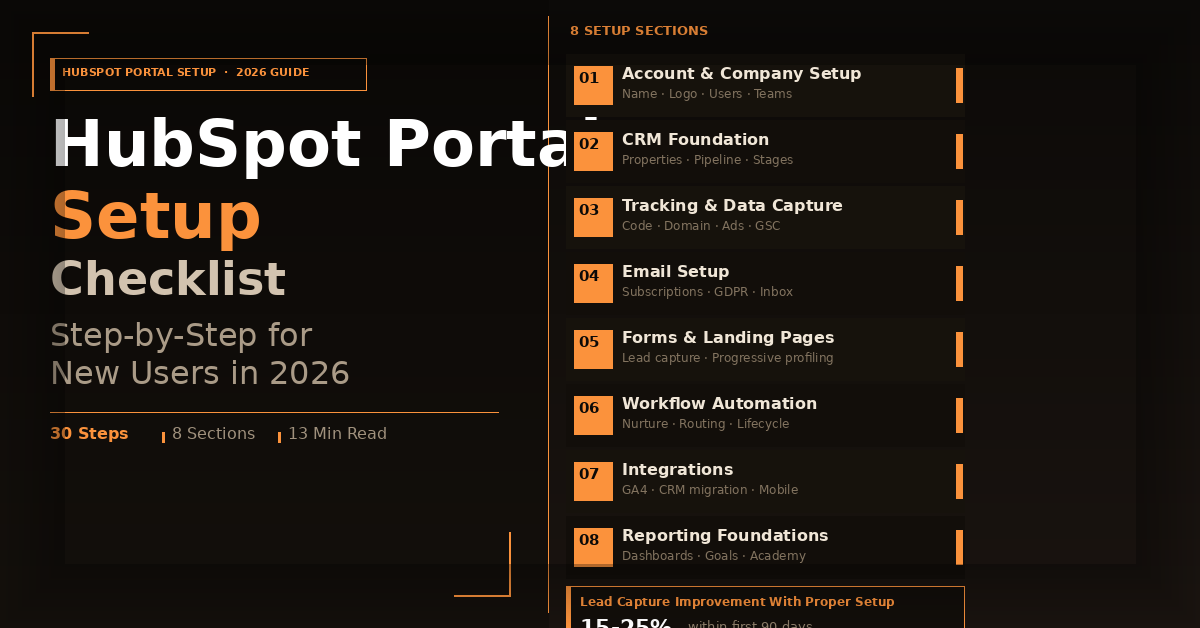
A complete HubSpot portal setup covers account configuration, CRM properties and pipelines, tracking code installation, email domain authentication, forms, landing pages, workflow automation, integrations, and reporting foundations. Getting these steps right before going live prevents the data quality problems and broken automation that result from configuring the portal reactively. Businesses that complete a structured HubSpot portal setup before going live see 15 to 25% better lead capture and pipeline accuracy within the first 90 days compared to those who configure as they go.
What Does HubSpot Portal Setup Include?
What should a new HubSpot user set up first and how long does it take?
A complete HubSpot portal setup covers account and user configuration, CRM property and pipeline setup, tracking and data capture, email sending domain authentication, forms and landing pages, workflow automation foundations, integrations, and reporting setup. For a small to medium business on HubSpot Starter or Professional, a thorough initial setup takes eight to sixteen hours spread over one to two weeks.
Getting HubSpot set up correctly from the start is one of the highest-leverage investments a new user can make. A portal configured properly in the first two weeks runs better, reports more accurately, and automates more reliably than one rushed into use and then patched incrementally as problems surface.
The challenge for most new HubSpot users is not motivation. It is knowing which configuration decisions matter most, in what order they should be made, and what getting them wrong looks like three months later when CRM data is inconsistent and workflows are firing on the wrong contacts.
This HubSpot portal setup checklist covers every configuration step new users need to complete before actively using the platform. Each item is ordered by dependency so that foundational decisions are made before the features that rely on them are configured. If your setup requires custom development work beyond standard configuration, our HubSpot development company services cover how professional implementation handles complex portal architectures.
Key Takeaways
- HubSpot portal setup order matters. Tracking code, domain authentication, and contact property configuration should be completed before any forms, workflows, or campaigns are created, because every asset built before these foundations are in place will need to be reviewed and potentially rebuilt
- Email sending domain authentication is the most commonly skipped setup step and the one that most directly affects email deliverability. Unauthenticated emails sent through HubSpot land in spam at significantly higher rates than authenticated ones
- Contact lifecycle stages should be configured to reflect how your business actually defines each stage before a single contact enters the CRM, not after the pipeline has already been populated with inconsistently staged records
- User permissions set up correctly from the start prevent data quality problems caused by team members accidentally editing or deleting records they should not have access to
- HubSpot’s default contact properties cover the basics but most businesses need at least eight to fifteen custom properties to capture the specific data points their sales and marketing processes require
- Completing this checklist before going live is significantly faster than completing it after the portal already contains active data, contacts, and campaigns
Before You Start: What You Need Ready
Before working through the checklist, have these items accessible so you are not stopping mid-setup to locate them. Your company domain and access to your DNS settings through your domain registrar or hosting provider. Your Google Analytics 4 property ID if you are running GA4 alongside HubSpot. Your company logo in both color and white versions at minimum 200px wide. Names and email addresses of all team members who need HubSpot access. A clear definition of your deal pipeline stages and what criteria move a deal from one stage to the next. A list of the data points your sales team needs to capture about contacts that HubSpot’s default properties do not include.
Section 1: Account and Company Setup
Step 1: Set your company name, logo, and branding defaults
Navigate to Settings, then Account, then Account Defaults. Set your company name exactly as it should appear in HubSpot system emails and notifications. Upload your company logo. Set your default company currency if you track deal values. Set your fiscal year start month if it differs from January, as this affects year-to-date reporting calculations.
Step 2: Configure your time zone and date format
Still in Account Defaults, set your time zone to the primary time zone your team operates in. This affects when scheduled emails are sent, when workflow delays trigger, and how timestamps appear in contact records and reports. An incorrectly set time zone is a subtle configuration error that produces confusing reporting discrepancies for months before it is identified.
Step 3: Set up users and assign permissions
Navigate to Settings, then Users and Teams. Add every team member who needs HubSpot access. For each user, assign a permission set appropriate to their role. Sales team members typically need view and edit access to contacts, companies, deals, and activities but should not have export or delete permissions on contact records. Marketing team members need access to marketing tools and contacts but typically should not have edit access to deal pipelines. Administrators need full access. If your setup eventually requires custom portal development beyond standard permissions, our hire HubSpot developer page covers when dedicated development expertise becomes necessary.
Step 4: Create teams
If your organization has multiple sales territories, business units, or functional teams, create HubSpot teams under Settings, then Users and Teams, then Teams. Teams are used in workflow branching for lead routing, in report filtering for territory performance, and in permission restrictions that limit users to records assigned to their team. Setting teams up before records enter the portal prevents manual reassignment work later.
Step 5: Connect your Google account for calendar and meetings
Navigate to Settings, then General, then Calendar. Connect your Google Workspace or Microsoft 365 account to enable HubSpot’s meetings tool. Calendar connection also enables two-way email logging, where emails sent from your connected inbox to contact email addresses are automatically logged on the contact record without manual entry.
The why you should hire HubSpot dedicated developers post covers when this level of initial setup benefits from dedicated HubSpot expertise rather than in-house configuration.
Section 2: CRM Foundation Setup
Step 6: Audit and configure contact properties
Navigate to Settings, then Properties. Review HubSpot’s default contact properties and create custom ones for data points your business needs that defaults do not cover. Common custom properties include lead source detail, product interest, company size range, budget range, decision timeline, and qualification criteria specific to your sales framework. Property field type matters as much as the property name. Use dropdown or radio select fields for any property where you need consistent values that can be filtered and reported on. Using a text field for data that should be a dropdown produces inconsistent values that make CRM reporting unreliable from the start.
Step 7: Configure lifecycle stages to match your funnel
Lifecycle stages define where each contact sits in the relationship with your business, from Subscriber through Lead, Marketing Qualified Lead, Sales Qualified Lead, Opportunity, Customer, and Evangelist. The critical decision here is not which stages to use but what specific criteria define when a contact moves from one stage to the next. Document these criteria before configuring any workflows that update lifecycle stages, because workflows without clear stage criteria produce a CRM where pipeline reporting is unreliable. The HubSpot CRM and lead generation strategy post covers how lifecycle stage configuration connects directly to lead generation reporting accuracy.
Step 8: Set up your deal pipeline
Navigate to Settings, then Objects, then Deals, then Pipelines. Edit the default pipeline to reflect your actual sales process. Rename or add stages to match your sales cycle milestones. For each stage, set the probability percentage that reflects the historical win rate at that stage. If your business runs multiple distinct sales processes, create separate pipelines for each rather than combining them into one, which produces deal stage data that is not comparable across deal types.
Step 9: Configure company and deal properties
Repeat the property audit process for company and deal objects. Company properties most commonly requiring custom additions include industry vertical beyond HubSpot’s default industry categories, account tier or strategic importance rating, primary contact role within the account, and contract renewal date if you manage recurring revenue. Deal properties commonly requiring custom additions include deal type, product or service line, sales channel, and close loss reason, which is one of the most valuable custom deal properties for improving sales process over time and one of the most frequently omitted from initial setup.
Section 3: Tracking and Data Capture
Step 10: Install the HubSpot tracking code on your website
Navigate to Settings, then Tracking and Analytics, then Tracking Code. Copy the HubSpot tracking code and install it in the head section of every page on your website. On WordPress, install the HubSpot WordPress plugin which handles tracking code installation and form capture natively. On other platforms, add the script manually or through the platform’s script injection settings.
The tracking code enables contact page view tracking in the timeline, source attribution for new contacts created through form submissions, and the data that populates HubSpot’s traffic analytics reports. Every day the tracking code is not installed is a day of attribution data lost permanently.
Step 11: Authenticate your email sending domain
Navigate to Settings, then Website, then Domains and URLs, then Email Sending Domains. Add your company’s primary email sending domain and follow the DNS record configuration instructions HubSpot provides. This process involves adding DKIM, SPF, and DMARC records to your domain’s DNS settings. HubSpot’s knowledge base authentication guide provides the specific DNS record formats and troubleshooting steps for each major domain registrar.
Email sending domain authentication is mandatory for acceptable email deliverability in 2026. Google and Yahoo’s February 2024 sender requirements made DKIM and SPF authentication a requirement for bulk email senders. HubSpot emails sent from unauthenticated domains are filtered to spam at rates that make email marketing and sales sequences functionally ineffective.
Step 12: Connect your website domain for HubSpot-hosted content
If you plan to host landing pages or other content on HubSpot’s CMS, navigate to Settings, then Website, then Domains and URLs, then Connect a Domain. Connect a subdomain such as go.yourdomain.com or resources.yourdomain.com to HubSpot. This subdomain will be the URL for all HubSpot-hosted content including landing pages. Our HubSpot landing page development service covers how custom landing pages built on this subdomain are architected for conversion performance.
Step 13: Set up the HubSpot tracking pixel for ad platforms
Navigate to Settings, then Marketing, then Ad Tracking and Reporting. Connect your Google Ads, LinkedIn Ads, and Facebook Ads accounts. This connection enables HubSpot to attribute ad clicks to contact records, report on ad-influenced deals in the pipeline, and create custom audiences in ad platforms from HubSpot contact lists. The 7 custom HubSpot features that transformed our clients marketing post covers how ad platform connections unlock attribution reporting that is otherwise impossible to produce from ad platform data alone.
Step 14: Configure Google Search Console connection
Navigate to Settings, then Marketing, then SEO. Connect your Google Search Console property to HubSpot. This connection pulls organic search keyword performance data into HubSpot’s SEO tool, allowing you to see which keywords are driving organic traffic alongside your HubSpot content performance data in a single view.
Section 4: Email Setup
Step 15: Configure subscription types
Navigate to Settings, then Marketing, then Email, then Subscription Types. HubSpot’s subscription type system determines which contacts receive which categories of marketing email based on their opt-in status. Review the default subscription types and add any additional categories your email program requires, for example separating product updates from promotional emails or segmenting by content topic area.
Subscription types must be configured before any marketing emails are sent, because every marketing email requires a subscription type assignment, and contacts who have not opted in to a subscription type cannot legally receive emails of that type under GDPR and CAN-SPAM requirements.
Step 16: Configure GDPR settings if applicable
Navigate to Settings, then Privacy and Consent. If your business operates in or markets to contacts in the European Union, enable GDPR functionality. Configure the consent language that appears on HubSpot forms, set the legal basis for processing contact data, and configure how HubSpot records consent for each contact. HubSpot’s privacy and consent documentation covers the specific configuration options and their legal implications in detail.
Step 17: Set up your team inbox
Navigate to Conversations, then Inboxes. Create a shared team inbox connected to your primary customer-facing email address, for example hello@yourdomain.com or support@yourdomain.com. Team inboxes allow multiple team members to view, assign, reply to, and track email conversations from a shared address without sharing login credentials, and log all conversations to the contact record automatically.
Section 5: Forms and Landing Pages
Step 18: Create your foundational lead capture forms
Navigate to Marketing, then Lead Capture, then Forms. Create the core forms your website and campaigns require before building any landing pages or embedding forms on your website. At minimum, create a contact form for general inquiries, a content offer download form, a newsletter subscription form, and a consultation or demo request form.
For each form, configure the fields to match the offer value as discussed in the HubSpot landing page best practices guide. Set up the follow-up email that triggers on submission for each form. Configure the thank you message or redirect URL for each form’s post-submission experience.
Step 19: Configure progressive profiling on repeat-traffic forms
For forms that existing contacts will encounter multiple times, for example content offer forms promoted through email nurture, enable progressive profiling under the form’s Advanced Options. Progressive profiling shows returning contacts only the fields that fill gaps in their existing CRM record rather than asking for information HubSpot already has. This single configuration change meaningfully improves form completion rates from known contacts without requiring any additional development work.
Step 20: Create your core landing pages
Navigate to Marketing, then Landing Pages. Create the fundamental landing pages your campaigns require: a primary lead generation page for your main offer, a consultation request page, and a thank you page for each form. The how to build HubSpot landing pages that actually convert guide covers the conversion architecture decisions that should govern each page’s structure. For custom high-performance landing page builds beyond the standard template library, our HubSpot landing page development service covers custom module and template development.
Section 6: Workflow Automation Foundations
Step 21: Create a lead notification workflow
Navigate to Automation, then Workflows. Create a simple contact-based workflow that triggers when a new contact submits any of your lead capture forms and sends an internal email notification to the appropriate sales owner. This is the foundational automation that ensures no new lead goes uncontacted because it fell into the CRM without anyone being alerted.
Step 22: Set up lifecycle stage update automation
Create a workflow that automatically updates contact lifecycle stage based on behavioral and property criteria. At minimum, configure the workflow to move contacts from Lead to Marketing Qualified Lead when they reach a defined engagement threshold, for example viewing a pricing page or downloading a high-intent content asset. Configure it to move contacts from Marketing Qualified Lead to Sales Qualified Lead when the sales team has reviewed and accepted the lead for outreach. These transitions should be automated where possible and manually triggered where human judgment is required.
Step 23: Create a basic lead nurture sequence
Create a contact-based workflow triggered by the submission of your primary lead capture form. The workflow should deliver a sequence of three to five emails over two to three weeks, each providing a relevant piece of value related to the offer the contact downloaded. Design the sequence to end with a soft CTA for a consultation or demo rather than repeating the sales ask in every email. The B2B content marketing services proven tactics guide covers how nurture sequence content strategy should connect to the lead generation program it supports.
Step 24: Configure deal rotation or assignment rules
If you have multiple sales team members who handle new deals, create a workflow that assigns new deals to sales owners based on round-robin rotation, territory rules, or company size criteria. Configure this workflow before any deals start entering the pipeline so that every deal created from the first day has a clear owner rather than sitting unassigned until someone manually reviews the pipeline.
Section 7: Integrations
Step 25: Connect Google Analytics 4
Navigate to Settings, then Tracking and Analytics, then Tracking Code, then Advanced Tracking. Connect your GA4 property to enable cross-platform reporting that shows HubSpot contact attribution data alongside GA4 behavioral data. This connection is particularly valuable for understanding the full visitor journey from first organic search visit through to form submission and deal creation.
Step 26: Connect your CRM or data tools if migrating
If you are migrating contact data from another CRM or database, complete the data migration before going live with any campaigns. Data migration after campaigns have started creates duplicate contacts, broken attribution, and inconsistent lifecycle stage data that is significantly more complex to resolve retroactively. Our HubSpot development company services guide covers how professional HubSpot migration is handled for portals with complex existing data.
Step 27: Install HubSpot on your mobile devices
Download the HubSpot mobile app from the App Store or Google Play. The mobile app enables sales team members to log calls, access contact records, and respond to live chat conversations while away from their desk. For field sales teams, mobile app access is a core part of the HubSpot workflow rather than an optional convenience.
Section 8: Reporting Foundations
Step 28: Set up your core dashboard
Navigate to Reports, then Dashboards. Review HubSpot’s default dashboards and customize the Marketing Dashboard and Sales Dashboard to show the metrics most relevant to your business goals. Add a website traffic source breakdown report, a form submission trend report, a deal pipeline by stage report, and a lead source to deal attribution report as the foundational views your team will review weekly.
Step 29: Configure goal tracking
Navigate to Reports, then Goals. Set sales pipeline and revenue goals for each sales team member. Goals appear on the sales performance dashboard and allow managers to track individual and team performance against targets in real time rather than calculating attainment manually from deal data.
Step 30: Complete HubSpot Academy onboarding courses
Navigate to HubSpot Academy and complete the HubSpot Marketing Software certification and the HubSpot Sales Software certification courses relevant to the Hubs your subscription includes. Academy courses are free for all HubSpot users and cover platform features, best practices, and strategic frameworks that significantly accelerate the time to value from a new HubSpot implementation. The certifications also serve as credentials for team members who will be managing the portal ongoing.
HubSpot Portal Setup Checklist Summary
| Section | Steps | Priority |
|---|---|---|
| Account and company setup | Steps 1 to 5 | Do first |
| CRM foundation | Steps 6 to 9 | Do first |
| Tracking and data capture | Steps 10 to 14 | Do first |
| Email setup | Steps 15 to 17 | Do before any sends |
| Forms and landing pages | Steps 18 to 20 | Do before campaigns |
| Workflow automation | Steps 21 to 24 | Do before go-live |
| Integrations | Steps 25 to 27 | Do before go-live |
| Reporting foundations | Steps 28 to 30 | Do in first week |
People Also Ask
Schedule a call
Talk to a subject-matter expert
Web development, SEO, or digital marketing — tell us about your project and we'll get back within one business day. No obligation.
- Free scope & strategy session
- A senior specialist, not a sales rep
- Your details stay confidential