Summarize this blog post with:
TL;DR
- Only 43 percent of WordPress sites on mobile pass all three Core Web Vitals tests in 2026. That means more than half of all WordPress sites are giving visitors a poor experience and receiving a ranking penalty relative to faster competitors often without the site owner knowing that Core Web Vitals are the cause of their ranking decline.
- The March 2026 Google Core Update reinforced Core Web Vitals as a stronger ranking factor. Sites that previously passed at the bare minimum threshold are now being re-evaluated. If your rankings dropped in March or April 2026 without an obvious content reason, Core Web Vitals failures are the most likely cause.
- WordPress speed optimisation and Core Web Vitals are the same problem. LCP (Largest Contentful Paint), INP (Interaction to Next Paint), and CLS (Cumulative Layout Shift) are the three metrics and every one of them has WordPress-specific causes that generic CWV guides never address: page builders, plugin JavaScript stacking, shared hosting TTFB ceilings, and unoptimised theme CSS.
- A2Z Dev Center provides WordPress development services including Core Web Vitals audits and speed optimisation for businesses across the US. The 15 fixes in this guide are the same ones we implement on every WordPress performance engagement.
WHAT ARE CORE WEB VITALS AND WHY DO THEY AFFECT WORDPRESS SEO?
Core Web Vitals are three specific metrics Google uses to evaluate real-world user experience on your website:
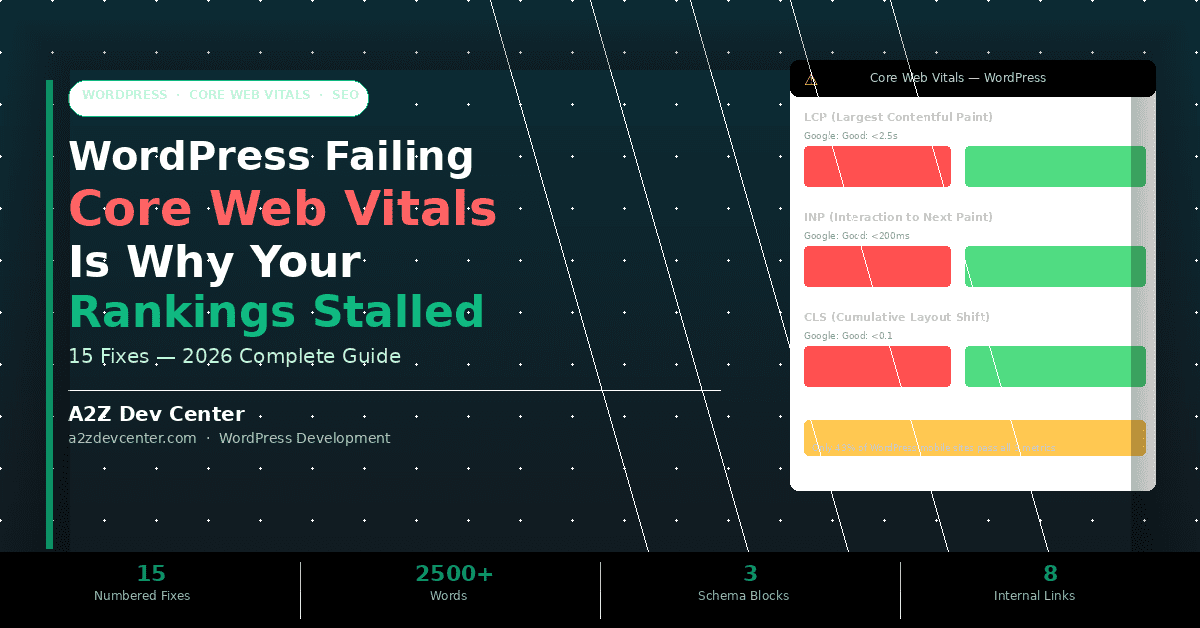
LCP (Largest Contentful Paint – how fast the main content loads, Good: under 2.5 seconds),
INP (Interaction to Next Paint – how fast the page responds to clicks and taps, Good: under 200ms),
and
CLS (Cumulative Layout Shift – how stable the layout is during loading, Good: under 0.1).
Google integrated CWV as a ranking signal in 2021, and they directly affect where your WordPress site appears in search results.
Your WordPress site has traffic. It has good content. You have been publishing consistently. But organic rankings have been flat or declining for months and you cannot trace the cause to any specific change you made. The most common hidden cause in 2026 is Core Web Vitals failure and it operates silently because it does not trigger any error messages, warnings, or visible problems. The site loads. Orders process. Pages render. And Google is quietly ranking competitors with faster sites ahead of yours for the same keywords.
This guide explains exactly why WordPress sites fail Core Web Vitals in 2026, why the problem is worse on mobile than desktop, and provides 15 specific numbered fixes organised by metric that address the root causes most WordPress owners and generic speed guides miss. Our detailed companion guide on WordPress speed and security issues covers how performance and security failures often compound each other.
The 2026 Core Web Vitals Benchmarks Where Does Your WordPress Site Stand?
Before fixing anything, you need to know the correct benchmarks and which data source Google actually uses for rankings.
| Metric | Good (Green) | Needs Improvement (Orange) | Poor (Red) | What It Measures |
|---|---|---|---|---|
| LCP | Under 2.5s | 2.5s to 4.0s | Over 4.0s | Speed of largest visible element loading |
| INP | Under 200ms | 200ms to 500ms | Over 500ms | Response time to all user interactions |
| CLS | Under 0.1 | 0.1 to 0.25 | Over 0.25 | Layout stability during page load |
| TTFB | Under 800ms | 800ms to 1,800ms | Over 1,800ms | Server response time (not a CWV but sets LCP floor) |
Critical 2026 context: Only 43 percent of WordPress mobile sites pass all three Core Web Vitals tests, according to
SearchEngineLand data from July 2025.
Only 47 percent of all websites globally pass the CWV assessment. If your site is in the 53 percent majority, you are receiving a ranking signal disadvantage on every search query where a faster competitor exists.
The Critical Distinction: Why PageSpeed Insights Scores and Google Rankings Tell Different Stories
This is the most important section in this guide and the one completely absent from all competing articles on this topic.
Google does not use your PageSpeed Insights lab score for ranking decisions. It uses the field data in your Google Search Console Core Web Vitals report real measurements from actual Chrome users visiting your site over the past 28 days. These two data sources frequently disagree, and optimising for the wrong one produces the frustrating experience of improving your PSI score to 90 while your rankings do not move.
The PSI lab score is measured in a controlled test environment: a simulated mid-range mobile device on a throttled 4G connection from a Google server. Your real users arrive on a range of devices, network speeds, and geographic locations some faster, many slower. Your field data reflects this real distribution. A WordPress site can achieve a PSI lab score of 85 while its field data LCP is 4.2 seconds on the specific devices and connection speeds used by most of its actual visitors.
To see the data Google uses for your rankings: open Google Search Console, go to Experience, then Core Web Vitals. This report shows field data segmented by URL group, device type, and which specific metric is failing. This is your authoritative source. For a deeper investigation of the technical SEO signals affecting your rankings, a technical SEO audit will surface Core Web Vitals field data alongside every other ranking signal affecting your site’s organic performance.
Why WordPress Specifically Fails Core Web Vitals (The Causes Nobody Explains)
WordPress powers 43.4 percent of all websites globally, but its open architecture creates a specific set of performance problems that no other major CMS shares. These are not generic web performance problems they are WordPress-specific failure patterns.
Cause 1: Heavy Page Builders Loading Enormous JavaScript and CSS Payloads
Elementor, Divi, WPBakery, and Beaver Builder generate large amounts of JavaScript and CSS on every page much of it for layout features not used on the specific page being loaded. Elementor alone adds 300 to 500KB of JavaScript to every page by default. This JavaScript runs on the main thread, blocking user interaction and producing poor INP scores. The CSS generates render-blocking requests that delay LCP. A WordPress site with an average INP of 640ms is almost always running a heavy page builder without JavaScript deferral properly configured.
Cause 2: Plugin JavaScript Stacking Across Every Page
The average WordPress site runs 23 active plugins. Each plugin can add JavaScript to every page load even on pages where the plugin’s functionality is not needed. A contact form plugin loading its validation script on the homepage, a slider plugin loading animation libraries on product pages, a membership plugin loading authentication JavaScript on static blog posts each adds to the total blocking time and directly worsens INP. When INP replaced FID as a Core Web Vital in March 2024, approximately 600,000 websites that had previously passed CWV suddenly failed most of them because their JavaScript payload was causing interactions to lag beyond the 200ms INP threshold.
Cause 3: Shared Hosting TTFB Sets a LCP Floor You Cannot Fix With Plugins
TTFB (Time to First Byte) is the time between a browser requesting a page and receiving the first byte of data from your server. If your TTFB is 2.1 seconds, your LCP cannot be below 2.1 seconds regardless of how well you have optimised images, enabled caching, or configured a CDN. TTFB is determined by your hosting environment specifically, server response speed, whether server-level caching is active, and PHP execution time. Most shared hosting environments produce TTFB values of 800ms to 3 seconds. Managed WordPress hosting (Kinsta, WP Engine, Cloudways, Rocket.net) typically achieves TTFB under 200ms with server-level caching and PHP-FPM. This is the single most impactful WordPress speed optimisation available and no plugin can substitute for it.
Cause 4: Themes Loading 40+ CSS Files and Render-Blocking Fonts
Premium WordPress themes built for visual flexibility commonly load 30 to 50 CSS files per page, load Google Fonts via external DNS requests that add 300 to 600ms to cold page loads, and include global CSS for layout features not used on most pages. Each CSS file is a render-blocking request the browser cannot render visible content until all CSS in the head is processed. A theme loading 40 CSS files before your LCP image starts downloading is adding seconds to your perceived load time that no image compression fix will overcome.
Cause 5: Third-Party Scripts (Chat Widgets, Ad Networks, Analytics) Running on Every Page
Each third-party script Intercom, Drift, Google Tag Manager containers with multiple tags, ad network JavaScript, affiliate tracking scripts adds HTTP requests, JavaScript execution time, and often main thread blocking that directly worsens both LCP and INP. Google Tag Manager containers that grow to 20+ tags over time become significant performance liabilities. Chat widgets from Intercom or Drift add 200 to 400KB of JavaScript that loads synchronously by default, directly blocking page rendering.
The 15 WordPress Speed Optimisation Fixes – By Metric
These 15 fixes are organised by which Core Web Vitals metric they primarily address. Fix LCP first – it is the metric with the widest gap and the highest ranking impact for most WordPress sites.
If your TTFB in PageSpeed Insights is above 800ms, every other fix in this list will produce partial results. Migrate to managed WordPress hosting before optimising anything else. Managed hosts run server-level Nginx page caching, PHP-FPM with optimised worker processes, and Redis object cache by default – cutting TTFB from a typical shared hosting range of 1.5 to 3 seconds down to 80 to 200ms. This single infrastructure change typically moves LCP from “Poor” to “Needs Improvement” or better before any plugin or code change is made. Our detailed breakdown of all
WordPress speed fixes from 6 seconds to under 2 seconds
covers the full hosting migration and configuration process.
FIX 2
Preload the LCP Element with fetchpriority=”high”
LCP
The LCP element – typically your hero image, featured image, or largest above-the-fold text block – needs to be discovered and downloaded as early as possible. By default, the browser discovers the LCP image only after parsing the full HTML and CSS, adding 500ms to 1,500ms of discovery delay. Adding a preload link in the document head with the fetchpriority=”high” attribute instructs the browser to start downloading the LCP image immediately, before any other resources:
<link rel="preload" as="image" href="/hero.webp" fetchpriority="high">
This is Google’s own top-recommended LCP improvement for 2026. Most WordPress sites do not have this implemented because it requires knowing which element is the LCP element and adding the preload hint in the theme head. WP Rocket’s “Preload LCP Image” setting automates this when correctly configured to identify the correct LCP element.
FIX 3
Convert All Images to WebP and Compress Aggressively
LCP
WebP images are 30 to 50 percent smaller than equivalent JPEG or PNG files at the same visual quality. A hero image that is 2.4MB in JPEG becomes approximately 1.1MB in WebP eliminating over a second of download time on a typical 4G mobile connection. WordPress 6.7 automatically generates WebP versions of uploaded images. For existing image libraries, Imagify, ShortPixel, or Smush convert and serve WebP with JPEG/PNG fallbacks for older browsers. Do not compress the LCP image into obscurity prioritise file size reduction on all other images while keeping the LCP element at sufficient quality, and use the preload hint from Fix 2 to ensure it loads first regardless of size. Advanced image optimisation techniques for WordPress are covered in our guide on
advanced WordPress performance optimisation.
FIX 4
Enable Full-Page Caching with WP Rocket or LiteSpeed Cache
LCP
WordPress generates every page dynamically from PHP and database queries by default. Page caching stores a static HTML copy of each page and serves it directly without PHP or database processing – cutting server response time from 800ms to 2 seconds (dynamic generation) down to 20 to 100ms (cached). WP Rocket enables page caching, browser caching, GZIP compression, and database cleaning from a single plugin. LiteSpeed Cache is the best free alternative for LiteSpeed server environments. After enabling page caching, run a second PageSpeed Insights test – TTFB and LCP on cached pages should improve significantly. Enable cache preloading so popular pages are pre-generated rather than generated on first visit after a cache clear.
FIX 5
Enable Redis Object Cache for Database Query Speed
LCP
WordPress makes multiple database queries on every page load – post metadata, user data, options, widget configurations, and more. Redis stores the results of these queries in memory so repeated requests bypass the database entirely. On a WooCommerce store or a site with logged-in users, Redis reduces database query time by 40 to 70 percent per page. Most managed WordPress hosts include Redis – enable it through the hosting dashboard and install the Redis Object Cache plugin. Redis pairs with page caching (Fix 4): page cache serves anonymous visitors; Redis serves logged-in users and dynamic pages that cannot be fully cached.
FIX 6
Upgrade to PHP 8.4 – A Free 10-20% Performance Improvement
LCP
PHP 8.4 delivers 10 to 20 percent faster code execution than PHP 8.1 on identical hardware due to its JIT (Just-In-Time) compiler improvements. Most shared hosting environments still default to PHP 8.0 or 8.1. Upgrading takes two minutes in your hosting control panel – but always test in a staging environment first, as some older plugins and themes have PHP 8.x incompatibilities. WordPress 6.5 and above fully supports PHP 8.4. The performance gain is free infrastructure improvement that compounds with every other fix in this guide.
FIX 7
Remove Render-Blocking CSS and Inline Critical CSS Above the Fold
LCP
Every CSS file loaded in the document head blocks the browser from rendering visible content until the file is fully downloaded and processed. Critical CSS is the minimum CSS needed to render the above-fold content visible to the user. Inlining this critical CSS in the document head and deferring all other CSS eliminates render-blocking for the LCP element. WP Rocket’s “Remove Unused CSS” and “Optimize CSS Delivery” settings automate much of this. The key is ensuring the LCP element’s styles are in the inlined critical CSS – not in a deferred external file – so the browser can render it without waiting for any external stylesheet.
FIX 8
Audit Your JavaScript Payload — The Primary INP Driver in WordPress
INP
INP replaced FID as a Core Web Vital in March 2024 and is significantly harder to optimize because it measures all interactions throughout the page session, not just the first click. When INP replaced FID, approximately 600,000 websites that had previously passed CWV suddenly failed – almost all because of JavaScript main thread blocking. Open Chrome DevTools and go to the Coverage tab (three dots menu, More Tools, Coverage). Reload the page. Every JavaScript file will show what percentage is used versus unused. Any file with over 50 percent unused code and file size above 50KB is an INP optimization candidate. Plugin JavaScript files with 80 to 95 percent unused code on most pages should be either disabled on those pages (using Perfmatters or Asset CleanUp) or replaced with lighter alternatives.
FIX 9
Defer and Delay Non-Critical JavaScript Execution
INP
JavaScript that runs synchronously in the document head or body blocks the main thread, preventing the browser from responding to user interactions. Every millisecond the main thread is blocked by JavaScript execution is a millisecond added to INP. Add the
defer attribute to all non-critical scripts and async to analytics and tracking scripts. WP Rocket’s “Delay JavaScript Execution” feature delays all non-critical script execution until the user interacts with the page – significantly reducing main thread blocking during the initial load and improving INP scores. After implementing deferral, verify no visual functionality is broken by testing interactive elements (dropdowns, modals, forms) in a staging environment.
<script defer src="/non-critical-script.js"></script>
<script async src="/analytics.js"></script>
FIX 10
Reduce DOM Size by Removing Page Builder Bloat
INP
A large DOM (Document Object Model) – more than 1,500 nodes is Google’s threshold for concern, above 3,000 is actively harmful – increases the time required for the browser to process, render, and update the page structure in response to user interactions. Page builders like Elementor wrap every layout element in multiple nested divs, creating DOMs of 3,000 to 8,000 nodes on heavily designed pages. Use Chrome DevTools Performance panel to check your DOM node count (under Summary, look for “DOM Nodes”). If above 1,500, audit which page builder sections are generating the most nodes and simplify layouts, or migrate high-traffic pages to the native WordPress block editor (Gutenberg) which generates significantly lighter DOM structures.
FIX 11
Disable Plugin Scripts on Pages Where They Are Not Needed
INP
Most WordPress plugins load their JavaScript and CSS on every page of your site regardless of whether the plugin’s functionality is used on that page. A contact form plugin loading form validation scripts on your homepage. A WooCommerce plugin loading cart scripts on blog posts. A slider plugin loading animation libraries on your About page. None of this JavaScript provides any function on those pages – it only adds to main thread blocking and INP. Perfmatters and Asset CleanUp Pro let you disable specific plugin scripts on specific page types through a visual per-page interface – no code required. This is the fastest INP improvement available without changing your hosting or plugin stack.
FIX 12
Add Explicit Width and Height to Every Image
INP
When a browser begins rendering a page and encounters an image without explicit width and height attributes, it reserves no space for the image until it finishes downloading. When the image finally loads, it shifts all content below it downward – a layout shift that contributes directly to your CLS score. WordPress 5.5 and above automatically adds width and height attributes to images inserted through the media library. Check whether your theme or page builder is overriding these attributes by inspecting images in Chrome DevTools Elements panel. Any ![]() tag without both width and height specified is a CLS contributor. WordPress 6.7 also adds aspect-ratio CSS automatically for images with explicit dimensions – a significant CLS improvement for sites on this version or above.
tag without both width and height specified is a CLS contributor. WordPress 6.7 also adds aspect-ratio CSS automatically for images with explicit dimensions – a significant CLS improvement for sites on this version or above.
FIX 13
Fix Google Fonts FOUT and Reserve Space for Ads and Embeds
CLS
Google Fonts loaded via the standard external link cause FOUT (Flash of Unstyled Text) – text renders in the browser’s default font first, then jumps to the correct font when the Google Fonts file finishes downloading. This jump is registered as a layout shift. Fix it by adding
font-display: swap to all @font-face declarations and hosting Google Fonts locally using the OMGF plugin, which eliminates the external DNS lookup and the rendering jump entirely. For ads and embedded content (YouTube videos, Tweets, iframes), reserve explicit space in your CSS before the content loads using min-height or the aspect-ratio property – preventing the ad or embed from shifting surrounding content when it loads.
@font-face {
  font-family: 'Inter';
  font-display: swap; /* Prevents layout shift from font loading */
}
FIX 14
Audit Plugin-Injected Elements That Appear After Page Load
CLS
Cookie consent banners, GDPR notices, newsletter popups, sticky header scripts, and social proof notification widgets – each of these injects HTML into the rendered page after the initial load, shifting existing content and adding to CLS. The fix is not always to remove these elements, but to ensure they appear in reserved space rather than injecting into the content flow. Cookie banners should be positioned as fixed overlays that do not push content. Sticky headers should be positioned absolute or fixed from the initial render rather than switching from static to fixed after page load. Check your CLS score in PageSpeed Insights “Diagnostics” section – it will identify the specific elements causing layout shifts.
FIX 15
Specifically Test and Optimise for Mobile – Google’s Ranking Data Is Mobile-First
Mobile
Google uses mobile-first indexing, which means its Core Web Vitals ranking signal is derived from the mobile version of your page experience, not desktop. A WordPress site can achieve a PageSpeed Insights desktop score of 92 while its mobile score is 34 – and Google’s rankings are based on the 34. Run your Google Search Console Core Web Vitals report and filter by Device: Mobile. Identify which URL groups are failing on mobile specifically. Mobile-specific fixes beyond what Fixes 1-14 address include: sticky add-to-cart buttons implemented as position-fixed (not position-sticky, which causes CLS on some browsers), touch target sizes above 48×48 pixels to prevent INP failures from missed taps, and viewport meta tag correctly configured to prevent horizontal scrolling. Our comprehensive ecommerce development services cover WooCommerce-specific mobile CWV optimisation where product pages and checkout flows are often the highest-traffic failing URL groups.
Frequently Asked Questions
Your WordPress Site Is Failing CWV. Your Rankings Are Showing It. Let’s Find Exactly Where.
The fixes in this guide address every layer of WordPress Core Web Vitals failure – but identifying which combination of causes is active in your specific site requires a systematic audit of your field data, plugin stack, hosting configuration, JavaScript payload, and CLS contributors. Applying the wrong fix first produces minimal improvement while the real bottleneck remains unfixed.
A2Z Dev Center provides WordPress development services including Core Web Vitals audits and speed optimisation for businesses across the US. We start with your Google Search Console field data – the data Google actually uses for rankings – identify every metric failing and why, and provide a prioritised fix roadmap with expected CWV improvement per fix at your specific traffic volume. No generic plugin recommendations. A specific diagnosis for your specific WordPress site.
Book Your Free WordPress Core Web Vitals Audit
Schedule a call
Talk to a subject-matter expert
Web development, SEO, or digital marketing — tell us about your project and we'll get back within one business day. No obligation.
- Free scope & strategy session
- A senior specialist, not a sales rep
- Your details stay confidential